How to show an estimated delivery date on your Shopify store
Insights
November 3, 2026
María Banegas

Will it get here by Saturday?
The product page doesn't say. The cart doesn't say either. So you open another tab and start looking somewhere else.
You've probably been that shopper too. For the store that lost the sale, nothing was wrong with the product, the price or the photos. The shopper just couldn't see when it would arrive.
Delivery is a buying decision
We tend to think of delivery as something that happens after the sale. For shoppers, it's part of deciding whether to buy at all.
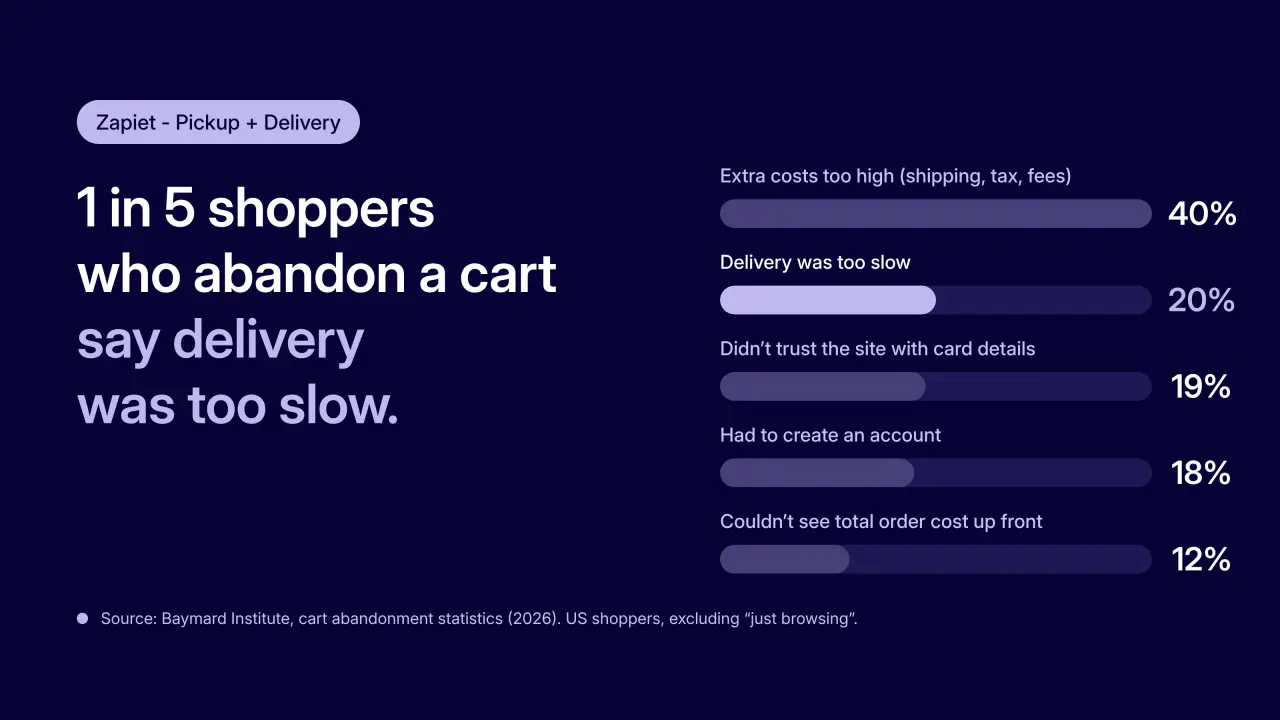
Baymard Institute asked US online shoppers why they had abandoned a cart. Setting aside people who were just browsing, 20% said delivery was too slow. That's 1 in 5 of those shoppers walking away over delivery, not the product.
You can't always make delivery faster. But you can make sure shoppers see an estimated delivery date before they decide.
Three moments to answer "when?"
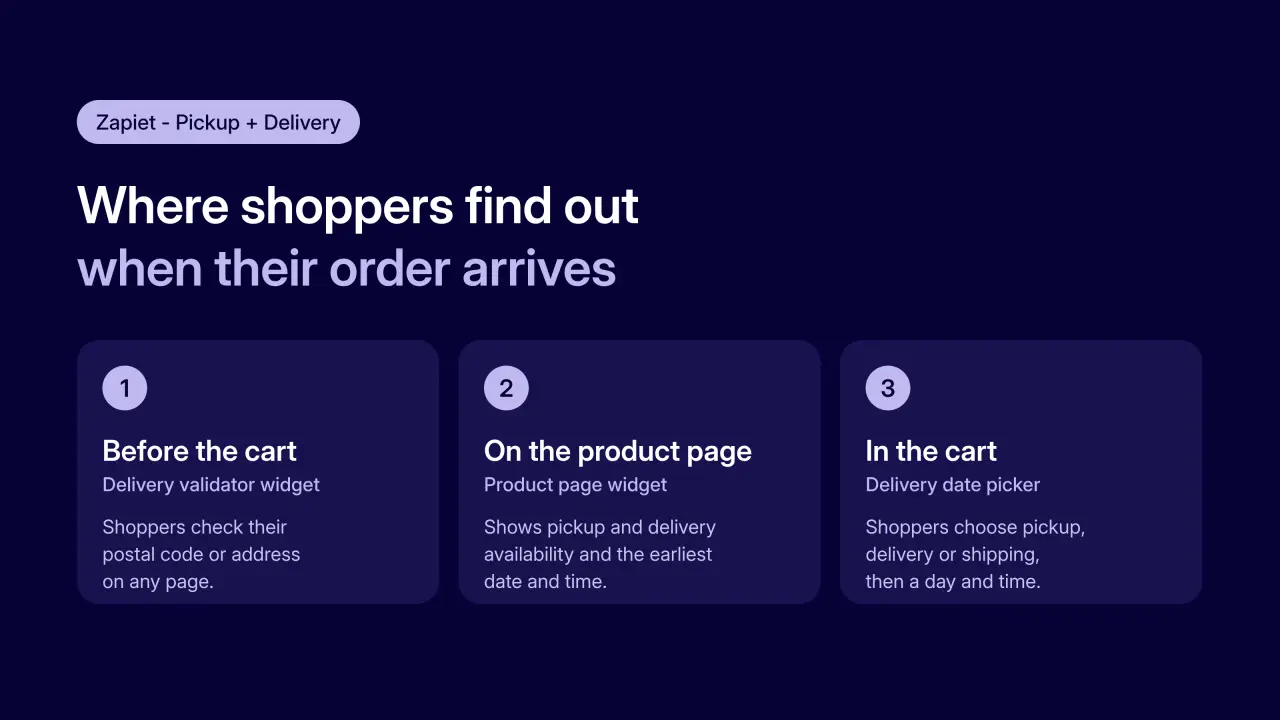
There isn't one right place to show delivery details. A shopper asks the question at different points, so the answer should be there at each one.
Before they start shopping
The most frustrating answer is "we don't deliver to you", especially when it comes at checkout. The delivery validator widget appears on every page of your store and lets shoppers check their postal code or address first. Anyone outside your area finds out straight away, and everyone inside it browses knowing local delivery is an option.
When they're looking at the product
This is the moment from our candle story. The product page widget shows whether that product is available for local pickup or local delivery, plus the earliest available date and time for each, based on where the shopper is. The question gets answered on the product page itself, wherever you choose to place the widget.
When they're ready to buy
In the cart, shoppers choose store pickup, local delivery or shipping. Then the delivery date picker lets them choose the day and time that suits them. By the time they reach checkout, the date is already settled.
A delivery date is a promise
Showing an estimated delivery date only helps if it's right. If it slips, you've let down a shopper who planned around it.
The good news is that the date picker only offers days and times your own settings allow. So accuracy comes down to keeping a few settings honest for each location:
Delivery days and slots: when you actually deliver
Preparation time: how long you need between an order and its delivery slot
Blackout dates: the days you can't deliver, like public holidays or days you're closed

Give shoppers a plan B
Sometimes the earliest delivery date just isn't soon enough. That's where local pickup comes in. Pickup has its own days, slots, preparation time and blackout dates, so shoppers can see when their order will be ready to collect.
Go back to our candle shopper. If delivery can't make Saturday but click and collect can make Friday, you haven't lost the sale. You've just offered a better way to get it.
Setting it up with Zapiet - Pickup + Delivery
If you already use Zapiet - Pickup + Delivery, most of this is a few clicks away:
Product page widget: go to Settings, then Themes and checkouts, and add it in the Product page section. Here's how.
Delivery date picker: it's switched on by default. You'll find it under Settings, then Local Delivery. Here's how.
Delivery validator widget: go to Settings, then Local Delivery, and choose the theme to add it to. Here's how.
A few things to know about the product page widget. It covers local pickup and local delivery, not shipping. A shopper's choice there isn't carried over to the cart, so they'll pick their method and date again at that step. And shoppers outside your shipping zone will see the product as out of stock.
Answer "when?" before they ask
Shoppers want to know when their order will arrive. Show them on the product page and in the cart, and that's one less reason to open another tab and shop somewhere else.
Our candle shopper wasn't hunting for a deal. They just needed to know it would make it by Saturday.
Want to show your shoppers when their order will arrive? Zapiet - Pickup + Delivery is a Built for Shopify app that adds pickup and delivery dates to your product pages and cart. Get Zapiet - Pickup + Delivery on the Shopify App Store.
Share this post